
The Amica CloudPathLab provides four options for creating result reports.
Once a final report is released the PathLab will generate the final report
as an encrypted PDF on a secure PathLab cloud server and executes your delivery rules
as requested by ordering provider or patient. Delivery can be via email, fax or secure text link.
The permanent PDF can be accessed online by ordering provider and/or patient.
The simplest option is to have the PathLab prepare report using your standard format with the notation:
"See attached report". The user can easily attach the your final report as PDF.
The PathLab then generates the final report as an encrypted PDF and executes your delivery rules as
requested by ordering provider or patient.
Delivery can be via email, fax or text link.
Delivery by fax requires an internet fax acount. Delivery by text requires a Twilio account.
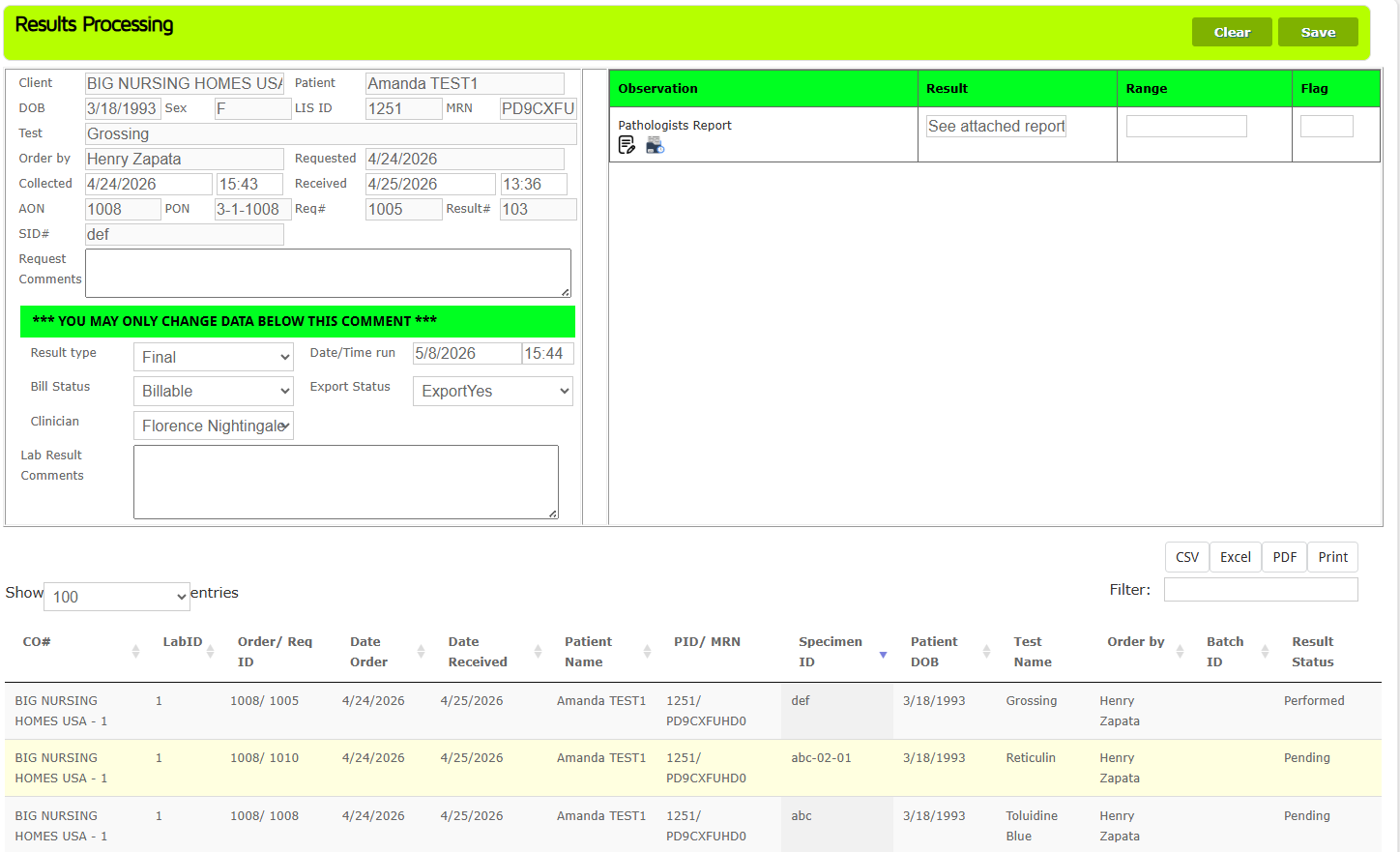
The Amica CloudPathLab Results Processing form is the simplest way to generate a report.
After you define the steps associated with a procedure when you select an order the
Results Processing form will display each step and let you enter status and applicable notes.
Current case status can be previewed by selecting the Preview button to see report in process.
Multiple clincians and labs are able to collaborate with this form. A "Hot Key" option allows
you to define paragraphs of text that are rendered by typing a single character.
The simpleset use of the form is entering "See attached report" and then attaching a PDF.
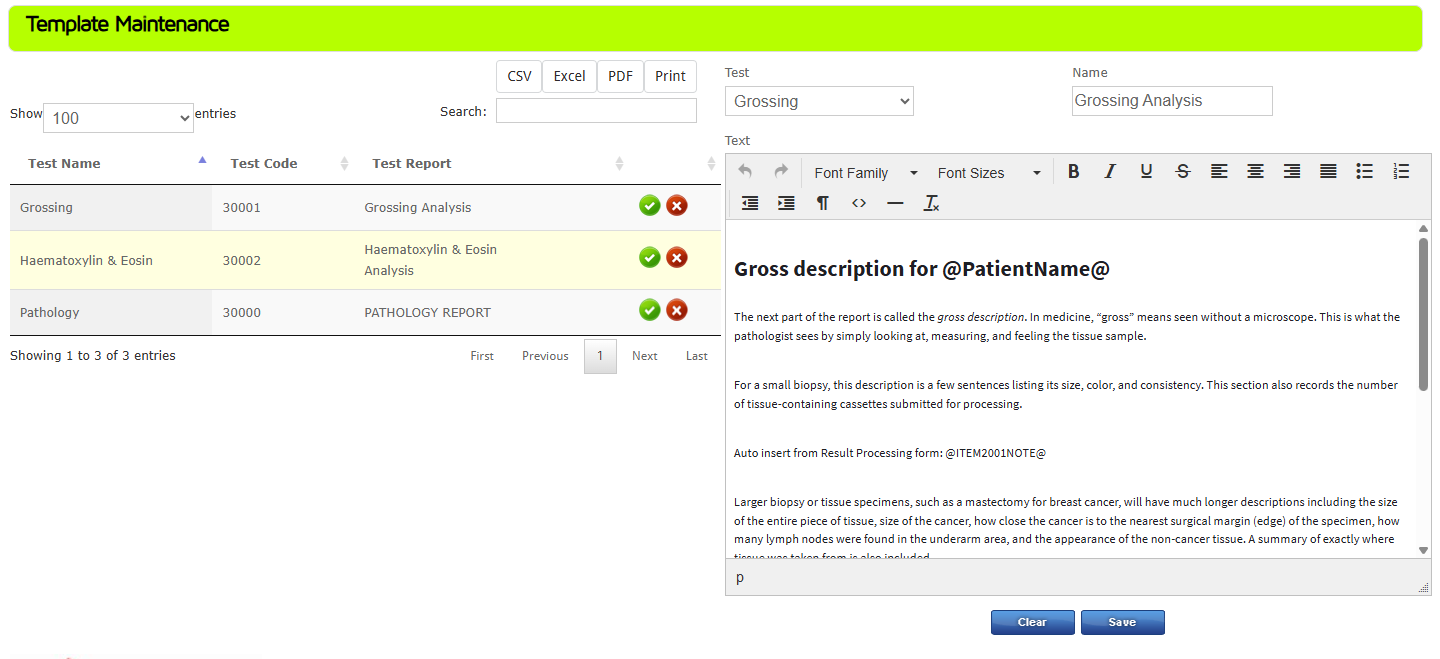
The Amica CloudPathLab Template Maintenance form allows you to easily create mutiple
report templates in any language.
When creating a report template your are able to include codes that the
Results Report procrssor will use to replace with order data.
For example, entering a code of @PatientName@ will be replaced with the
patient's name when the report is printed.
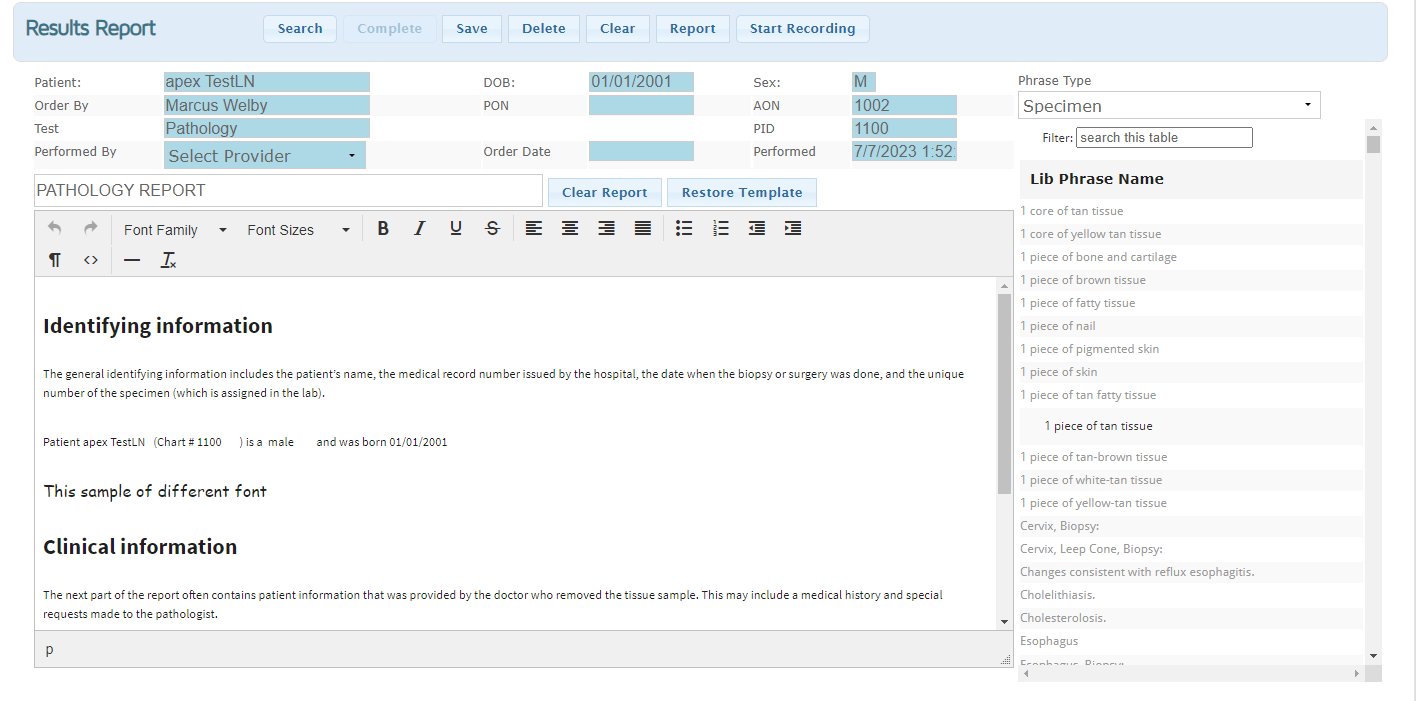
The Amica CloudPathLab Results Report processor supports the rapid and accurate
construction of complex pathology reports.
Each procedure of complex cases can have its own template and be worked on by multiple clinicians
and labs. When a case procedure is selected the clinician documents outcomes by entering text or by
clicking on the Record button to begin voice to text processing.
The right side of the form provides clinican to a library of standard phrases. The Phrase Type dropdown
list lets clinician select from different phrase libraries. Once phrase type is selected all phrase are displayed
in the scrolling text box below. The clinician can also further filter the text box by entering text into the Filter box.
Once a phrase is found it can be dragged into the report in process.
Clicking on the Report button allows you to preview the report in process. Clicking on the Complete
button signals that the report is now complete and cn move to final review, approval and publication.